

The National Jobs Portal (NJP) is an online platform where candidates can create an account, complete their professional profiles, search for government vacancies, and submit job applications. Applicants can use the portal to find available positions and apply directly through their NJP accounts.
If you are using the portal for the first time, you should complete your candidate registration and professional profile before applying for a vacancy. This guide explains how to create an NJP account, complete the eight profile sections, find jobs, and submit an application.
1. Open the National Jobs Portal Registration Page
Visit the official National Jobs Portal website.
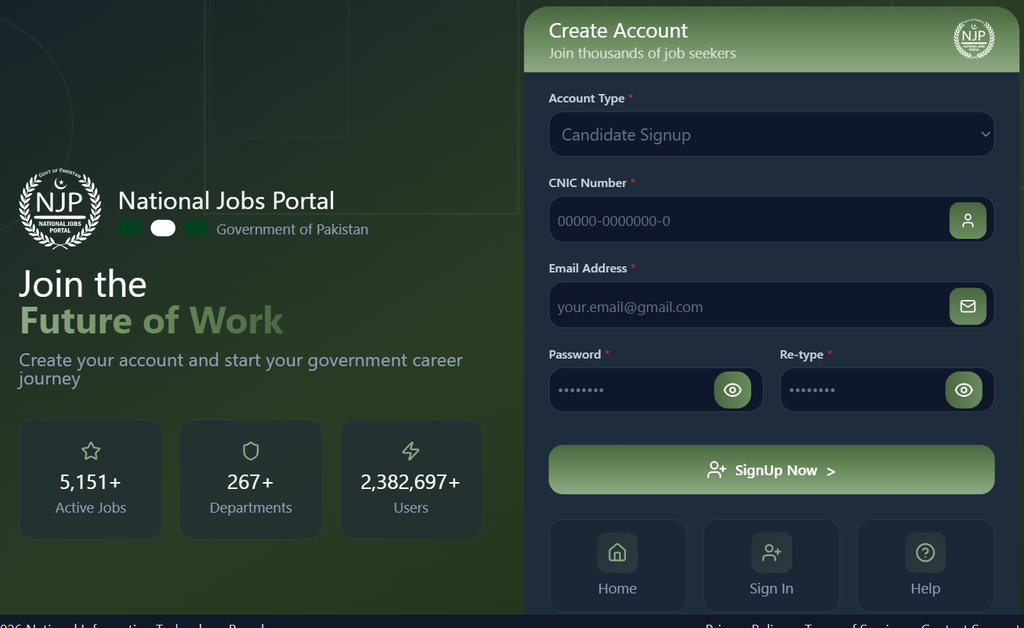
Open the registration page and select the candidate account option. The signup form contains the following fields:
- Account Type: Select Candidate Signup.
- CNIC Number: Enter your CNIC number.
- Email Address: Provide an active email address.
- Password: Create a password for your account.
- Re-type Password: Enter the same password again.
Check the information before clicking the SignUp Now button.
2. Open Your NJP Dashboard
After creating your account, sign in to the National Jobs Portal. You will reach your candidate dashboard.
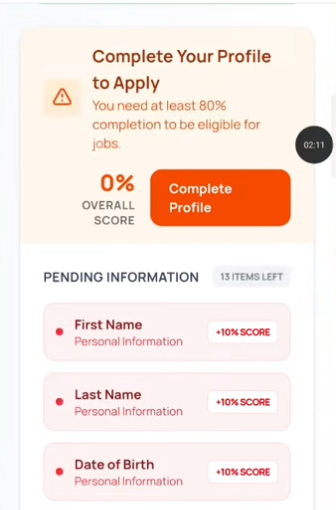
The dashboard displays your profile information and provides access to different portal sections. It also shows a profile-completion message.
In the dashboard screenshot used for this guide, the portal displays a requirement of at least 80% profile completion to become eligible for jobs. Your dashboard may show your current completion percentage and the information that is still missing.
Select Complete Profile to start filling in your professional information.
3. Complete Your Professional Profile in CV Manager
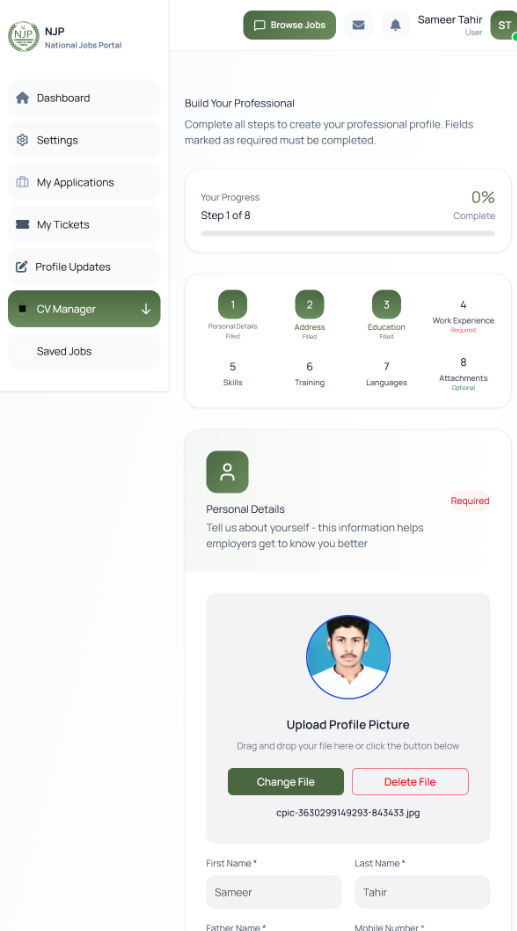
The NJP CV Manager divides the candidate profile into eight sections. You can move through these sections using the progress menu and the Next button.
The portal also displays which sections are filled, required, or optional. Fields marked with an asterisk (*) must be completed.
Step 1: Personal Details
Start by completing your personal information. The screenshot shows fields for:
- First and last name
- Father’s name
- Mobile number
- CNIC number
- Date of birth
- Gender
- Disability status
- Blood group and disease information
- Physical information, where requested
- Marital status
- Conviction status
- Nationality-related information
- Religion and domicile
- Domicile district
- Driving licence information
- CNIC front and back images
You may also upload a profile picture. Enter information carefully and make sure it matches your official documents.
Step 2: Address Information
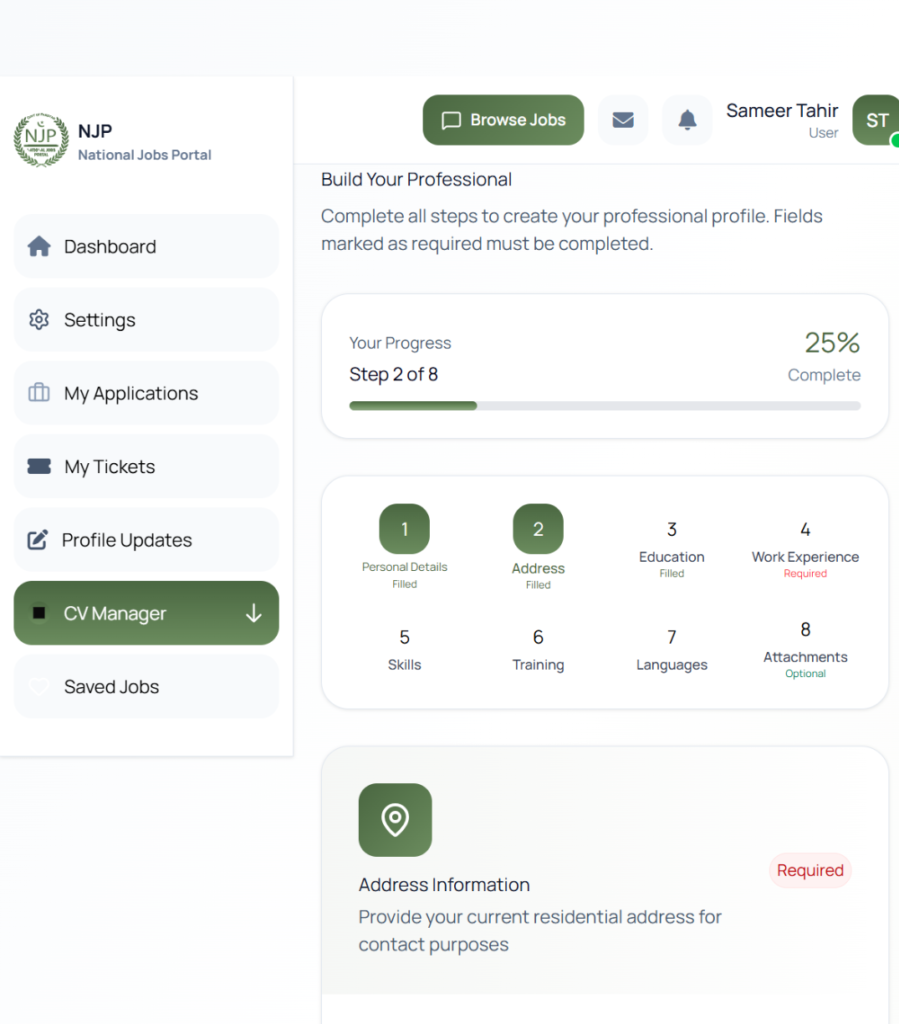
Enter your residential address in this section.
The screenshot shows the following fields:
- Present Address
- City
- Province
- Postal Code
- Country
The portal displays a note explaining that the address will be used for official correspondence and job-related communications. Check the information before proceeding.
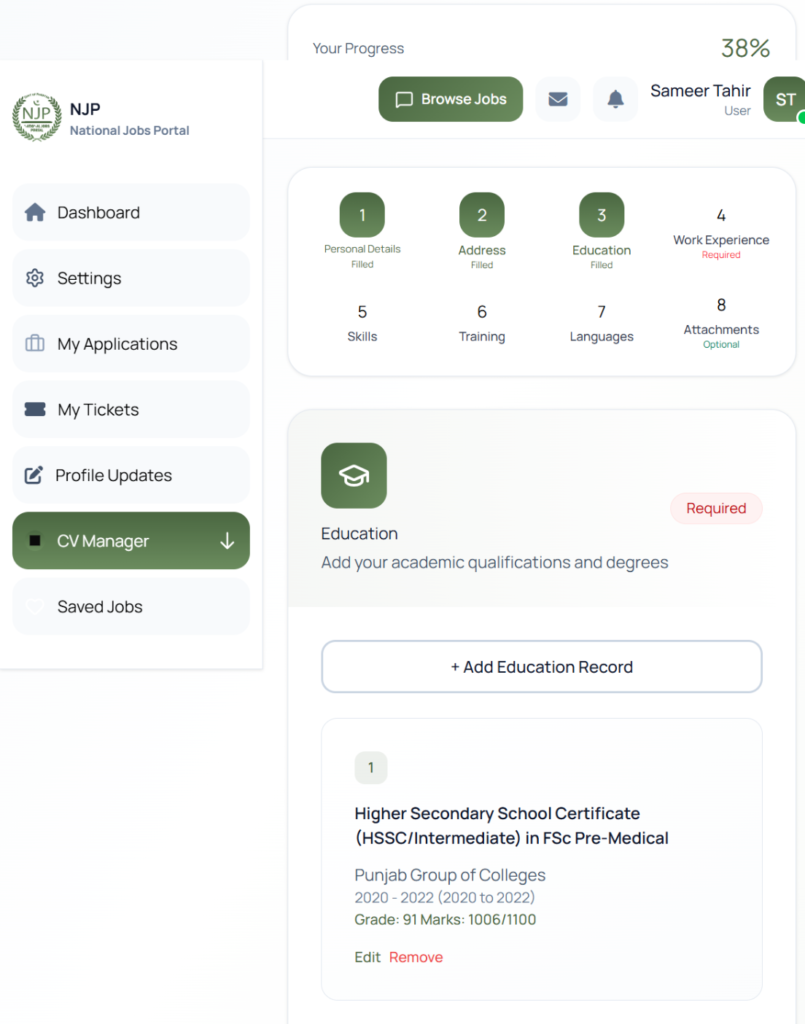
Step 3: Education
Add your academic qualifications and degrees in the Education section.
Select Add Education Record to enter a qualification. Your education record is displayed after it has been added, with options to edit or remove it.
Enter your academic information accurately, including the qualification, institution, study period, and result details requested by the form.
Step 4: Work Experience
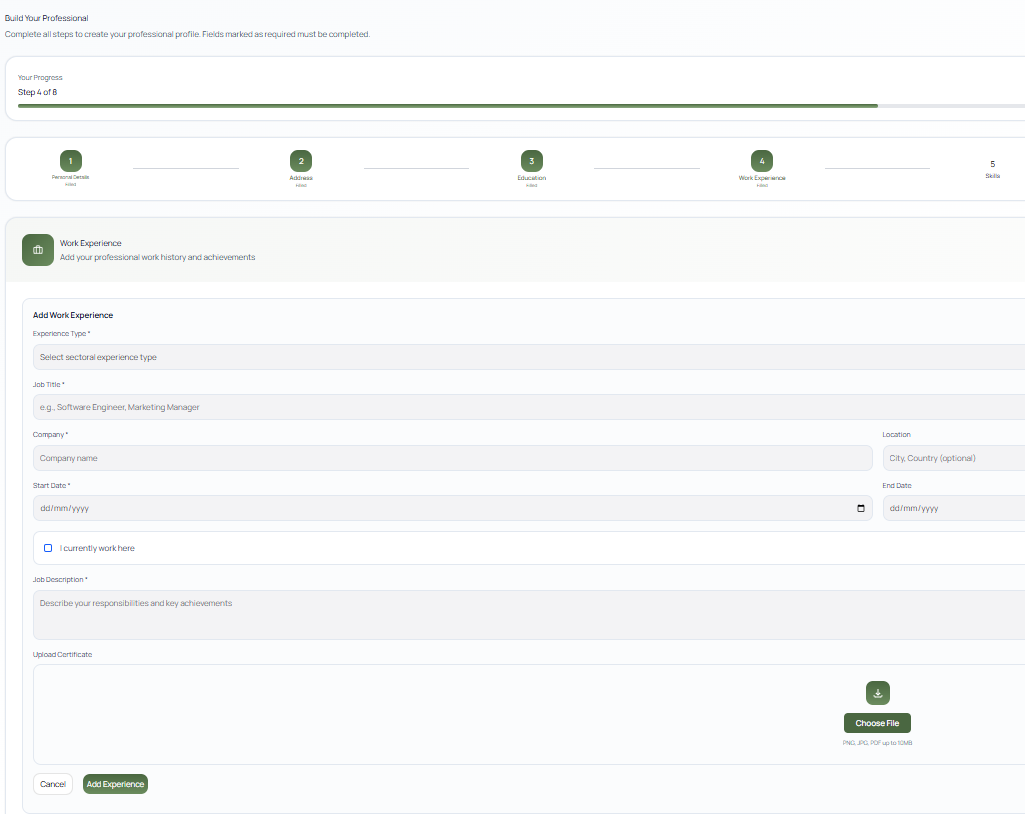
The Work Experience section allows you to add your professional work history.
The form shown in the screenshot contains these fields:
- Experience Type
- Job Title
- Company
- Location
- Start Date
- End Date
- Currently Work Here
- Job Description
- Upload Certificate
Fields marked with an asterisk are shown as required. If you are currently working at an organization, use the I currently work here checkbox.
Select Add Experience after entering the required information.
Step 5: Skills
Proceed to the Skills section and enter the skills relevant to your qualifications and professional background. Include skills that accurately represent your abilities.
Step 6: Training
Use the Training section to provide information about relevant training you have completed. Enter details according to the fields available in your account.
Step 7: Languages
Complete the Languages section by providing the language information requested by the portal.
Step 8: Attachments
The final section is Attachments. The profile progress screen labels this section as optional. Upload relevant supporting documents where required or useful for your profile.
After completing the available sections, review your information and check the profile-completion percentage on your dashboard.
Need Help Preparing Your CV or Resume?
Your professional profile should accurately present your education, skills, training and work experience. If you need help creating a new CV or improving an existing resume, you can explore our CV and Resume Services in Pakistan.
We offer CV creation, resume improvement and job-specific CV assistance for students, fresh graduates and experienced professionals. These services are optional. You can register on NJP and apply for government jobs without purchasing any paid service.
4. Search for Available Government Jobs on NJP
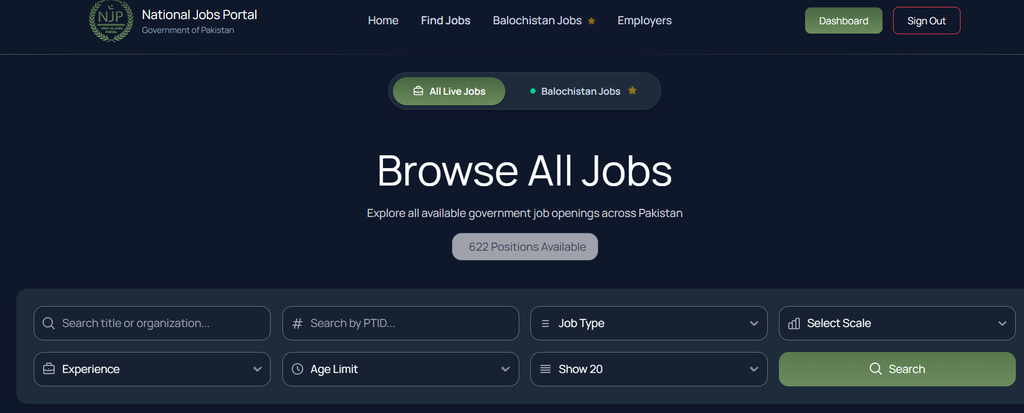
Once your profile is sufficiently complete, open the live jobs section.
You can also navigate to the jobs section through the NJP website.
Browse the available vacancies and find a position that matches your qualifications and experience. Open the relevant job listing to review its details and eligibility requirements before applying.
Do not apply without checking the requirements of the particular vacancy.
Explore More Government Jobs in Pakistan
Looking for vacancies beyond the National Jobs Portal? Visit our Government Jobs in Pakistan section to explore government job announcements from federal and provincial departments. Check the qualifications, eligibility criteria, application instructions and closing dates provided in each job update before applying through the relevant official recruitment portal.
5. How to Apply for a Job on NJP
NJP provides two ways to reach the application option from a job listing:
- Find the relevant vacancy and click Apply, if the option is displayed directly.
- Alternatively, select More Details to open the vacancy information and then click Apply.
The portal checks your eligibility for the selected position. If you meet the eligibility requirements, the application is submitted automatically through your account.
According to the application process described in this walkthrough, a successful submission displays a confirmation message on the portal. A confirmation email is also sent to the email address associated with your NJP account.
Make sure you check the confirmation message and your email after applying.
6. Check Your Application Status
After submitting an application, you can use the My Applications option in your NJP account to access your application records.
Keep your account details and registered email address accessible so you can check any job-related communication.
Important Points Before Applying
- Use an active email address when creating your NJP account.
- Enter your CNIC and personal information accurately.
- Complete the required profile fields.
- Check the eligibility criteria of every vacancy before applying.
- Use the official NJP website rather than unofficial registration links.
- Check for the application confirmation message and email after submission.
- Keep your professional and educational information accurate and up to date.
Frequently Asked Questions
Is registration on the National Jobs Portal necessary before applying?
You need a candidate account to use the portal’s candidate application process. Create your account and complete your profile before applying.
What profile completion percentage is required on NJP?
The dashboard screenshot used in this guide displays an 80% profile-completion requirement for job eligibility. Check the requirement shown in your own account.
Where can I find live government jobs on NJP?
Visit https://njp.gov.pk/jobs/live to browse the live vacancies listed on the National Jobs Portal.
How do I know if my NJP application was submitted?
The application process described in this guide displays a success message after an eligible application is submitted. A confirmation email is also sent to your registered email address.
Can I apply directly from a job listing?
Yes. You can click Apply directly where available, or open More Details and then select Apply.
Final Note
Creating an NJP account is only the first part of the process. Complete your professional profile, review the eligibility requirements of each vacancy, and submit your application through the official portal. After applying, check the confirmation message and the email address linked to your account.